


App Lock - Fingerprint Lock
4.65.44K Reviews
App Specs
- Version
- 1.4.3.0
- Updated On
- License
- Free
- Downloads
- 100,000,000+
- Developer
- 360 Tool
- Categories
- Productivity
- Platform
- Android, iOS
Screenshots
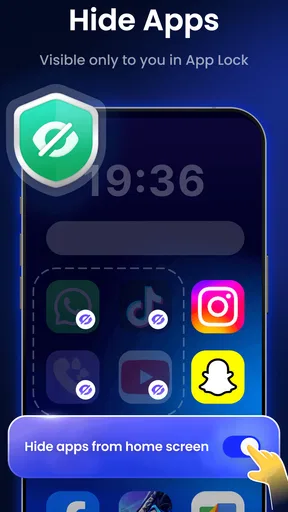
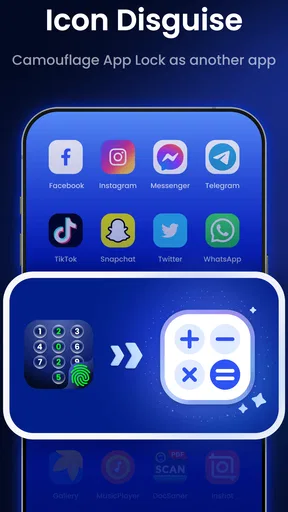
 Analysis by AppCompare
I find an app lock most useful when it solves a specific, recurring privacy problem rather than when it adds friction to every tap. App Lock - Fingerprint Lock is aimed at that everyday gap: keeping selected apps out of casual reach when someone else is holding your phone. It is a free productivity app from 360 Tool, and its 4.6 average across around 376,000 ratings suggests that many people find the basic idea useful. For me, the key is to choose a small set of apps to protect and make unlocking them feel routine.
A practical routine, not a second phone password
I’d begin by deciding what I actually want to keep private: perhaps a messaging app that may show personal conversations, a photo gallery, or an email account with work details. Locking everything can make a phone feel cumbersome, especially if I regularly move between apps. A narrower selection makes the extra check purposeful and keeps ordinary tasks quick.
The useful habit is to set the lock once, then test the exact moments that matter: opening a protected app from its icon, returning to it after switching elsewhere, and handing the device to someone while the app is already open. Those small checks reveal whether the setup fits how I use my phone. I would not assume that an app lock replaces the phone’s own screen lock; it is better treated as an additional barrier around selected apps.
Settings worth reviewing before relying on it
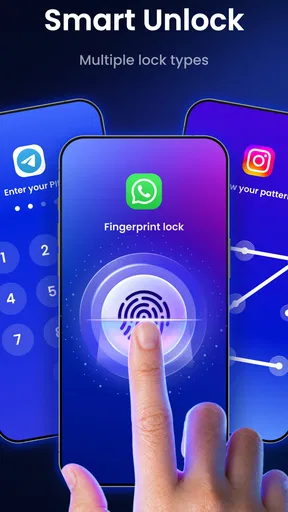
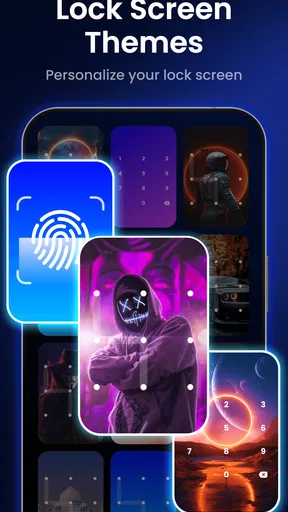
The app’s description highlights fingerprint locking, themes, a private browser, and junk removal, so it reaches beyond a simple PIN screen. I’d focus first on the protection method. A fingerprint can make frequent checks less annoying, while a pattern or PIN gives me an alternative when fingerprint access is unavailable or inconvenient. I would choose a code I can remember without making it easy for someone nearby to guess.
It is also worth checking which apps are protected and whether that list still makes sense after my habits change. For instance, I might initially lock email and photos, then realize that a messaging app shows sensitive previews or that I rarely open one of the protected apps at all. A quick review helps keep the barrier targeted instead of turning it into a blanket obstacle.
Faster habits for shared-phone moments
For a quick handoff, I’d avoid opening private material before passing the phone over. Instead, I would leave the protected apps closed and give the other person the screen they need. That sounds basic, but an app lock is most helpful when it supports a clear habit rather than asking me to rely on it after a private conversation is already visible.
The private browser may be useful when I want browsing to feel separate from my usual app routine, but I’d treat it as a convenience, not a promise of complete anonymity. Likewise, themes can make the interface feel more personal, but changing its appearance does not strengthen the lock by itself. The practical win comes from combining sensible app selection with a reliable screen lock and careful handoffs.
Worth Reading Before You Choose

Flipboard Shows What News Apps Must Do Beyond the Feed

Switching to Android Auto Means Rethinking Your Driving Routine

Google Calendar Makes a Crowded Week Easier to Manage

Ludo King Makes the Most of the Minutes Between Plans

Baby Panda World Brings Quick Play to Modern Phones, but Its Game Library Feels Busy

ESPN’s Live Game View Makes Following Close Games Easier
Where an app-level lock has limits
An extra lock screen can protect against casual snooping, but I would not treat it as a substitute for device security or a guarantee that every kind of information is hidden. Notifications, open sessions, and what is already visible on screen still deserve attention. If someone regularly needs access to my phone, setting up a separate user profile where the device supports it may be a better fit than repeatedly locking and unlocking individual apps.
I’d also think about the trade-off before protecting apps I use constantly. An extra authentication step can interrupt quick replies, checking a map, or switching between work tools. Fingerprint access may reduce that friction, but a lock remains one more step, and the best setup is the one I can live with consistently. The app is less suited to anyone who wants security without adjusting their everyday phone habits.
Getting Started with App Lock - Fingerprint Lock
First things first, downloading and installing App Lock - Fingerprint Lock was a breeze. It's available on both Android and iOS, so no one’s left out. Once installed, the app welcomes you with a straightforward setup process that even my grandma could handle. You just need to set up a master pattern or PIN, and if your device supports it, you can enable the fingerprint lock. Seriously, it took me less than five minutes to get everything up and running.
Features That Stand Out
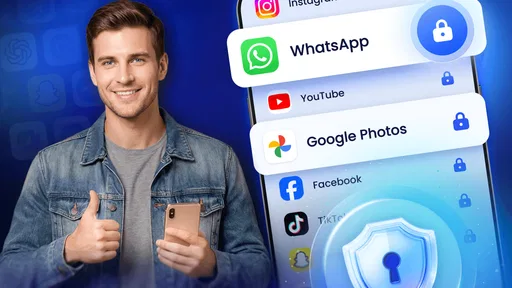
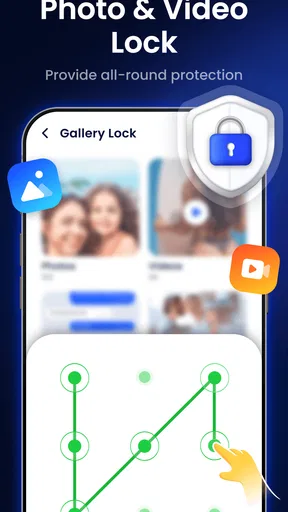
What’s really cool about this app is how customizable it is. You can lock pretty much any app on your phone, from social media and messaging apps to your photo gallery and email. The app also lets you set custom lock patterns for different apps, which is super handy if you want to mix things up a bit for added security.
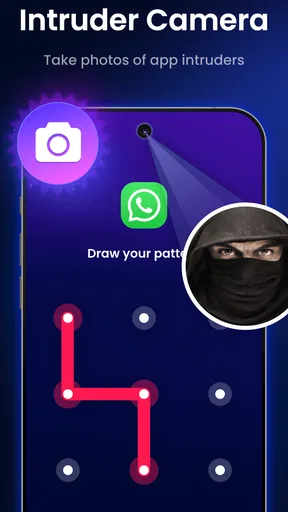
Another feature I found interesting is the intruder selfie option. If someone tries to sneak into your app and fails, the app snaps a quick picture of them using the front camera. Talk about catching someone red-handed! It’s like having your own little security camera on your phone.
User Experience and Interface
The interface is clean and user-friendly. I didn’t feel overwhelmed by a gazillion options or features, which is a plus. Everything is neatly organized, and the settings are easy to navigate. Plus, the app doesn't bombard you with ads, so you can tweak your settings in peace.
One little thing that I appreciated was the battery optimization feature. It ensures the app doesn’t drain your battery life, which is a common issue with some security apps. It’s the little things that count, right?
Performance and Reliability
Performance-wise, the app works like a charm. I didn’t experience any lag or crashes, and the fingerprint lock is super responsive. It’s as if the app just blends seamlessly into the phone’s functionality without any hiccups. Also, if you forget your PIN or pattern, the app has a nifty recovery option, so you’re never locked out of your own apps.
I tested it on a couple of apps that I use frequently, and I must say, I felt a lot more secure knowing that my information was locked away safely. It’s like having a digital security guard for your apps.
Why You Might Want It
If privacy is a big deal for you, then you’ll definitely want to give this app a try. Whether you’re hiding sensitive work emails or just that embarrassing selfie, App Lock - Fingerprint Lock has got your back. It’s especially great for those who share devices or have nosy friends and family members who just can’t resist peeking into your phone.
In a world where privacy is becoming more of a luxury, having an app like this is almost essential. Plus, it gives you peace of mind knowing that your digital life is a little more secure.
So, if you’re looking for an easy, reliable way to keep your apps locked down, I’d definitely recommend giving this app a go. You can find it on your respective app store, and trust me, once you start using it, you’ll wonder how you ever lived without it.
How it fits alongside phone security
Compared with relying only on a phone’s screen lock, an app-level barrier can be handy when I unlock the device to show someone a photo or let them use one particular tool. It adds a pause before selected apps open, rather than making me hand over the device passcode or keep watch over every screen. That distinction is useful, but it is also the limit: it helps with casual access, not with every possible privacy risk.
For a more controlled sharing situation, I’d compare this approach with the options already built into the phone. A temporary screen-pinning or guided-access feature, when available, can keep someone inside one app; a separate user profile can make more sense when another person uses the device often. I’d choose App Lock when the need is selective and recurring, not when I need a fully separate space for another user.
A realistic day with selective protection
Imagine I’m showing a relative a travel photo while waiting for coffee. I can hand over the phone with the gallery open, but I would first close any private conversations and avoid leaving a sensitive screen in view. Later, when I check work email in a public place, the additional app prompt gives me a moment to confirm that I’m the one opening it. This is a modest safeguard, not an excuse to leave the device unattended, but it addresses exactly the kind of quick, casual access that happens in ordinary life.
A useful non-obvious step is to test the handoff before I need it. I can ask someone I trust to try opening only the apps I chose, while I watch what remains visible around the lock screen and in recent app views. That check helps me spot exposure caused by previews or an already-open session, then adjust my phone habits accordingly. The benefit comes as much from knowing what the lock does not cover as from turning it on.
Who will appreciate the extra layer
I can see this being most useful for people who occasionally lend their phone, keep work and personal apps together, or want a simple boundary around photos and messages. It is also a reasonable choice for someone who prefers a visible, app-by-app decision instead of changing how the entire phone is organized. The broad adoption—over 50 million installs—shows that this kind of focused protection has a wide audience, although popularity alone cannot tell me whether the workflow will suit my own device.
I’d be more cautious if I need strong protection against a determined person, if I often share the phone for long stretches, or if every extra prompt frustrates me. In those cases, a device-level profile or a dedicated, built-in privacy feature may be a cleaner solution. Anyone who mainly wants to hide sensitive notifications should also review notification settings directly; locking an app is not the same thing as controlling what appears outside it.
What the extras do—and do not—change
The private browser and junk-removal tools broaden the app’s appeal, but I would judge them separately from its central job. A private browsing space can be convenient for keeping a particular session distinct from my usual browsing routine; it should not be confused with anonymous browsing or a substitute for careful account sign-outs. Junk removal may be useful as a housekeeping option, yet it does not make app locking more secure. I’d use each extra only if it solves a need I already have.
The intruder selfie option is another feature I would approach with restraint. A failed attempt might make it easier to identify who tried to open a protected app, but it is not a deterrent I’d rely on, and it does not replace a conversation about boundaries with people who use my phone. Before enabling any camera-related feature, I’d check how it behaves on my device and decide whether that kind of record is appropriate in my home or workplace.
Version, cost, and a sensible trial
The app is listed as free, with in-app purchases at $3.99 per item, so I’d start by trying the basic routine before paying for anything. That gives me a chance to see whether the lock remains convenient after the novelty wears off and whether its extra tools are relevant to me. Its current version is 1.4.2.0, and it supports Android 6.0 and later. It is marked for Everyone, which is a broad content classification rather than a statement that every setting suits every age or household.
Because app-lock behavior can depend on the device and its software, I’d test it after setup and again after changing the protected-app list. If the lock does not appear where I expect, or fingerprint access feels inconsistent, I would check the app’s own settings and the phone’s available security options before trusting it with something important. This is a sensible precaution for any extra security layer: verify the actual workflow rather than assuming the feature works identically everywhere.
My verdict after weighing the trade-offs
What I like most is the focused idea: add a deliberate checkpoint to the apps I would rather not leave open to casual browsing. What I would not do is lock every app, treat the private browser as invisibility, or assume an intruder snapshot turns a phone into a security camera. The strongest setup is selective, tested, and paired with ordinary habits such as closing sensitive screens before sharing the device.
For me, this is a practical option for everyday privacy, especially when a phone sometimes passes between family members or friends. If you want a lightweight way to put boundaries around a few apps, it is worth considering; if you need separate accounts, protection from determined access, or zero interruption, another approach will suit you better. That balance is why I’d recommend it to someone who understands what an app lock can do—and is willing to set it up thoughtfully.
Pros
- Easy to use interface.
- Supports fingerprint unlocking.
- Customizable lock themes.
- Low battery consumption.
- Regular security updates.
Cons
- Limited free features.
- Ads in the free version.
- Occasional lag on older devices.
- No cloud backup option.
- Requires device administrator rights.
FAQs for App Lock - Fingerprint Lock
How does App Lock - Fingerprint Lock work?
App Lock - Fingerprint Lock is a security application that allows users to protect their apps using a fingerprint sensor. Once installed, users can choose which apps to lock, ensuring that only authorized users can access them. This adds an extra layer of security, especially for sensitive applications like banking or messaging apps.
Is my data safe with App Lock - Fingerprint Lock?
Yes, App Lock - Fingerprint Lock is designed with user privacy in mind. The app utilizes your device’s native fingerprint recognition, meaning your biometric data is not stored externally. Additionally, the app does not access or store your personal information, focusing solely on app protection.
Can I use App Lock - Fingerprint Lock on any device?
App Lock - Fingerprint Lock is compatible with most Android and iOS devices that have a fingerprint sensor. However, it is important to check if your specific device model supports the app’s functionality. Devices without a fingerprint sensor may not be able to use the fingerprint lock feature.
What happens if the fingerprint sensor fails?
If the fingerprint sensor fails or is not functioning properly, App Lock - Fingerprint Lock provides alternative access methods such as PIN or pattern locks. This ensures that you can still access your locked apps, maintaining security while preventing lockouts due to hardware issues.
Does App Lock - Fingerprint Lock impact battery life?
App Lock - Fingerprint Lock is designed to be efficient and should have minimal impact on your device’s battery life. It runs in the background only when necessary, ensuring that your device’s performance and battery usage remain optimal. Regular updates also help improve efficiency and address any potential issues.


